Unable to install Almalinux 10

Hello everyone
I’d like to install AlmaLinux 10. But I can’t seem to get it to work
I’ve installed the .iso image onto a USB stick using ‘dd’
When booting, GRUB displays the various options correctly
Install AlmaLinux
Test and install AlmaLinux
Install AlmaLinux in FIPS mode
Troubleshooting

Whichever option I choose (I’ve tried them all), the computer restarts and returns to GRUB
I’ve tried this on two computers, one of which is relatively new, but the problem is the same
Even though I installed AlmaLinux 9.7 KDE without any issues
Is the image corrupted? I’ve loaded all four available images, including a ‘live’ image
The problem is the same with all of them; ‘Live’ only displays GRUB and a flashing cursor
I downloaded several images the first time over a month ago, and since then I’ve downloaded others, but the problem persists
Is this an issue with the images or the computer?
Thank you for your help
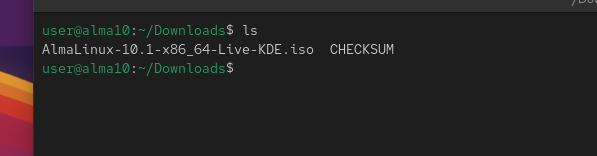
Hello,
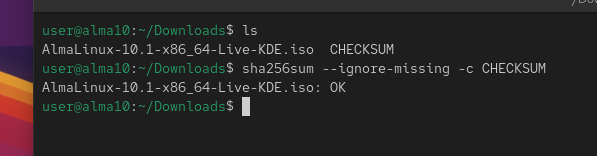
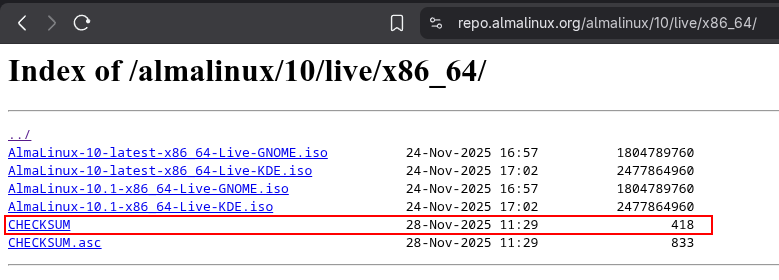
To verify the ISO you can use the CHECKSUM file that is located in the same directory as the ISOs.

Check that the CHECKSUM file and the ISO are in the same directory.

Run this command to verify the integrity of the downloaded ISO.

sha256sum --ignore-missing -c CHECKSUM

If it returns OK as in the image above, then the ISO was downloaded successfully.

If you use the dd command to write the ISO to a USB Drive I recommend adding the conv=fsync parameter to ensure that it was written correctly.

See the wiki for this step.

When you are in the GRUB, select this option:

Test and install AlmaLinux

If the test finishes OK then the ISO was downloaded and written successfully.

On the other hand, if version 9.7 works fine but 10.1 doesn’t, then you probably need to check if your CPU supports x86_64 v3.

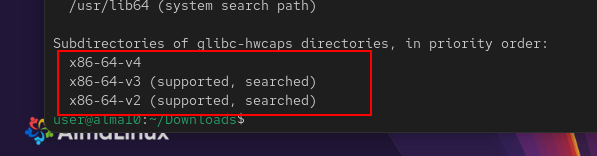
To do this run the following command:

/lib64/ld-linux-x86-64.so.2 --help
And looking for x86-64-v3 under “Subdirectories of glibc-hwcaps”

For example, the CPU I have has support for v2 and v3

If your CPU only has v2 support, then you will not be able to install AlmaLinux 10 and that would be the root cause.

In that case, you could try the AlmaLinux 10 x86_64_v2 ISO, but you’ll be limited to accessing only the repositories provided by AlmaLinux because third-party providers don’t support this architecture version.

Additionally, AlmaLinux maintains its own version of EPEL for x86_64_v2 if you only need software from that repository.

I hope the information is helpful.

Regards.

1 Like

Hello Pipe
Thank you for your help
I’m using KDE with DOLPHIN and I used: Properties > Checksums to verify the integrity of the images I’ve downloaded
Everything was ‘OK’
To install onto the USB stick, I use this command line in a terminal opened in the folder where the image is located
‘[jenrem@localhost ALMA]$ sudo dd if=AlmaLinux-10.1-x86_64-devd.iso of=/dev/sdd bs=4M status=progress && sync’

As you can see, I didn’t use ‘conv=fsync’. I wasn’t aware of this command option; if it’s important, I can ‘burn’ a new USB stick
However, I can’t get the command line to work to check my CPU version; I think it’s incomplete (given my knowledge of command lines, sorry)
Here is the result
#[jenrem@localhost ALMA]$ /lib64/ld-linux-x86-64.so.2 --help
Usage: /lib64/ld-linux-x86-64.so.2 [OPTION]… EXECUTABLE-FILE [ARGS-FOR-PROGRAM…]
You have invoked “ld.so”, the program interpreter for dynamically-linked
ELF programs. Usually, the program interpreter is invoked automatically
when a dynamically-linked executable is started.#
I’ve just done a quick search online, and generally speaking, on almost every site I find ‘9 commands to find out everything about your processor’, but none of them tell me the version of my processor.
Could you please give me the full command?
Thank you
Have a good evening

Bonjour Pipe

Merci pour votre aide

Je suis sous KDE avec DOLPHIN et j’ai utilisé : Propriété> sommes de contrôle , pour vérifier l’intégrité des images que j’ai chargées

Tout était « OK «

Pour installer sur la clef USB j’utilise cette ligne de commande dans un terminal ouvert dans le dossier où est logé l’image

« [jenrem@localhost ALMA]$ sudo dd if=AlmaLinux-10.1-x86_64-devd.iso of=/dev/sdd bs=4M status=progress && sync »

Comme vous pouvez le constater , je n’ai pas utilisé « conv=fsync « . Je ne connaissais pas ce complément de commandes , si il est important , je peux « graver « une nouvelle clef

Par contre , je n’arrive pas à utiliser la ligne de commande me permettant de connaître la version de mon CPU , je pense qu’ elle est incomplète ( pour mes connaissances en lignes de commandes , désolé )

Voici le résultat

#[jenrem@localhost ALMA]$ /lib64/ld-linux-x86-64.so.2 --help
Usage: /lib64/ld-linux-x86-64.so.2 [OPTION]… EXECUTABLE-FILE [ARGS-FOR-PROGRAM…]
You have invoked ‘ld.so’, the program interpreter for dynamically-linked
ELF programs. Usually, the program interpreter is invoked automatically
when a dynamically-linked executable is started.#

Je viens de faire une recherche internet , je trouve d’une façon générale sur presque tous les sites « 9 commandes pour connaître tout sur le processeur « aucune ne me donne la version de mon processeur

Pouvez vous me donner la commande complète

Merci

Bonne fin de journée

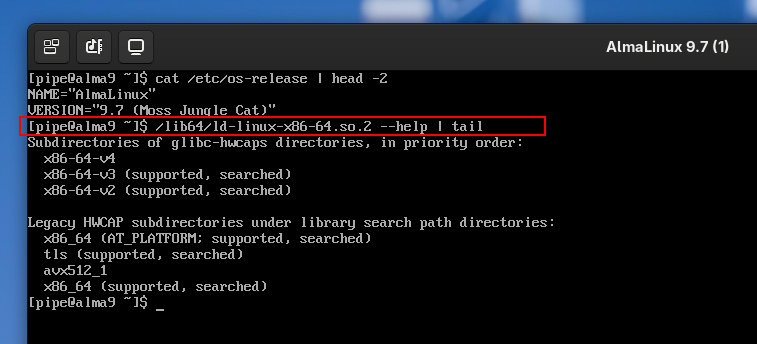
Okay, I installed a default minimal version of AlmaLinux 9.7 and the command still works.

Question: What OS are you using?

1 Like

One more thing: Can you show me the exact error message you’re getting during installation?

Perhaps we’re looking at the wrong thing.

Good evening, Pipe
Thanks for the new command line
I’ve used two operating systems
1 – Tumbleweed
2 – AlmaLinux 9.7
Here’s the result of that command on Alma 9.7

[jenrem@localhost ~]$ /lib64/ld-linux-x86-64.so.2 --help | tail
Subdirectories of glibc-hwcaps directories, in priority order:
  x86-64-v4
  x86-64-v3
  x86-64-v2 (supported, searched)

Legacy HWCAP subdirectories under library search path directories:
  x86_64 (AT_PLATFORM; supported, searched)
  tls (supported, searched)
  avx512_1
  x86_64 (supported, searched)
[jenrem@localhost ~]$ 


Which confirms that I won’t be able to install AlmaLinux 10, unless I change my computer, which isn’t on the cards
AlmaLinux 9.7 ‘will be updated beyond 2030, it seems to me

Looking in Tumbleweed’s ‘information centre’, I found this

Spec rstack overflow : Not affected

Spec store bypass : Mitigation; Speculative Store Bypass disabled via prctl

Spectre v1 : Mitigation; usercopy/swapgs barriers and __user pointer sanitization

Spectre v2 : Mitigation; Retpolines; IBPB conditional; IBRS_FW; STIBP conditional; RSB filling; PBRSB-eIBRS Not affected; BHI Not affected

Srbds : Not affected

The ‘V’ that I thought was the ‘version’ is actually the CPU’s ‘spectrum’ of utility

Thank you for your help and for your prompt reply

Have a good rest of the weekend

1 Like

Sorry, I forgot to answer that question

Sorry, I’m not very familiar with how to use the forum

You can try AlmaLinux 10 x86_64_v2 with the limitation to accessing only the repositories provided by AlmaLinux because third-party providers don’t support this architecture version.

Note: AlmaLinux has a own EPEL v2 for this version.

Regards!

Good evening, Pipe
Thank you
I’ll download this version tomorrow
And I’ll try installing it sometime today
Tomorrow evening or on Tuesday, I’ll get back to you to let you know whether the installation was successful or not
Have a good evening

Good evening, Pipe
I downloaded a ‘KDE v2’ image last night
I’ve just installed it on the HDD
I’m having a lot of trouble with ‘anaconda’. I wanted to create a separate home directory, but it’s always such a hassle
So I went for an ‘automatic’ installation
I still need to set the whole system to French, “ Bien sûr “
To do that, I’m going to use the command line “dnf langpack”, which I use with Fedora.
It’s very likely I’ll be calling on your expertise again to sort me out.

Thanks for your help
Have a good evening

1 Like

The default filesystem setup in RHEL and AlmaLinux has:

  • standard partition with FAT32 ESP, if EFI is used, mounted to /boot/efi
  • standard partition with XFS, mounted to /boot
  • standard partition with LVM2 PV, which has:
    • LV with XFS for /
    • LV with XFS for /home
    • LV for swap

Each regular account gets a home directory under /home


With the normal ISO installer (not the Live-***) the very first question tends to be the language that you want to use during install. I do presume that it does also affect what gets installed. (I only change the keyboard layout, so cannot tell what actually happens.)

Good evening, Jlehton

Thank you for all this information, the details of which I wasn’t aware of

It is indeed a ‘Live’ image that I booted because it comes with KDE by default

The first image I loaded required the installation of a desktop environment after installing the OS. I did that; it takes a bit longer, but it’s doable

I also read in the documentation about AlmaLinux that it was preferable to load an image with a predefined desktop environment, hence the KDE Live image

Of course, during installation I chose the locale (date/time), language and keyboard layout

Everything was working fine, but last night I ran an update via the terminal

‘dnf update’

I got a warning about 5 conflicts (I only remember 2: Okular and Plasma; I didn’t note down the others)

To try and resolve these conflicts, I added “–allowerasing” to my command line

The download of 850 packages (including 2 kernels) is underway; I accept the update, which proceeds correctly

I reboot (I always do this after an update)

After GRUB, a TTY screen appears

I start KDE via ‘systemctl start sddm’

The login screen appears, asking for my username and password

I enter them, but access is denied. I try several times; I even try using the ‘QWERTY’ keyboard layout, thinking the update might have changed the keyboard layout, but no, I still can’t log in

here were also two error messages (in red); I haven’t copied them, but I’ll do so before reinstalling, in case you’d like to see them.

I’m sorry, I’m using a translator, and I feel that adding copy-and-paste sections might make the text confusing.

The only function of “install image” is to install to local storage.
AlmaLinux has only one desktop environment (DE), the GNOME.
These images offer a choice to install with of without GNOME.
EPEL, a third-party repository, has packages that RHEL (and hence AlmaLinux) does not have.

The “Live” images have AlmaLinux installed on the image, so it can be run from USB stick.
They do also have the installer to start installation to local storage.
I presume that the installer is set to install the same DE that the system in image uses.

For convenience, there is a Live image with KDE (installed from EPEL).
One can also do “regular” (minimal) install and then install KDE.

AlmaLinux does receive smaller updates semi-frequently. However, the images are not updated every time, just for the larger “point updates”. Hence the large number of packages to update. (The regular install, if it does load packages from network rather than the image, will use latest versions.)

The EPEL and AlmaLinux repos are not always perfectly in sync with each other, which prevents simultaneous update of all packages. Plasma (KDE) is from EPEL.

I get a bad feeling from option names, like the "allowerasing”. Automation could do the right thing, but I don’t trust that. I rather remove conflicting third-party packages, update base system, and then reinstall the third-party packages. That usually works better. However, removal and reinstall of entire DE is definitely not possible from GUI session.


I do presume that before the update the “login screen” did appear automatically.
The question is why it does not now?
(Related: why does the sddm.service start when you manually start it?)

It is possible to read logs in the TTY view, for example with the journalctl command.

Also, the dnf history info last shows latest transaction. If that is the ‘dnf update’, then it should show the packages that were erased.


In order to run that systemctl start sddm you must have logged into the machine via the TTY screen. That authentication must thus work.

1 Like

Good evening, Jlehtone
Sorry it took me so long to get back to you
I haven’t been sitting idle in the meantime
I ran the commands you gave me; to do so, I had to press “Ctrl + Alt + F2” to open a terminal
“journalctl” gave me 1,777 lines; I didn’t read them all. I scrolled through the pages, stopping at the lines in red, which I considered important. I took photos of them.
I wanted to change my password, but it’s recognized in tty, so I figured there was no point in changing it.
Before reinstalling AlmaLinux, I thought about reinstalling KDE
Which I did; I restored the configuration to roughly how it was before the problem
Having restored the desktop environment and apps, I ran the second command
“dnf history info last”
So I was able to copy the lines of code that seemed relevant to me, as shown below

Here’s a screenshot showing the removal of 12 packages, including KDE Plasma and Okular.
I can post it on the forum if that would be helpful.

I then tried to update, but I got the error messages below

jenrem@localhost:~$ sudo dnf update
[sudo] Mot de passe de jenrem :
Dernière vérification de l’expiration des métadonnées effectuée il y a 0:08:49 le lun. 23 mars 2026 23:51:05.
Erreur :
Problème: package plasma5support-6.4.5-2.el10_1.alma_altarch.x86_64_v2 from @System requires libgps.so.30()(64bit), but none of the providers can be installed

  • package gpsd-1:3.26.1-1.el10_1.1.x86_64_v2 from appstream obsoletes gpsd-libs < 1:3.26.1-1.el10_1.1 provided by gpsd-libs-1:3.25-17.el10_0.alma_altarch.x86_64_v2 from @System
  • package gpsd-1:3.26.1-1.el10_1.1.x86_64_v2 from appstream obsoletes gpsd-libs < 1:3.26.1-1.el10_1.1 provided by gpsd-libs-1:3.25-17.el10_0.alma_altarch.x86_64_v2 from epel
  • installation impossible du meilleur candidat pour le paquet gpsd-libs-1:3.25-17.el10_0.alma_altarch.x86_64_v2
  • cannot install both gpsd-libs-1:3.26.1-1.el10_1.1.alma_altarch.1.x86_64_v2 from epel and gpsd-libs-1:3.25-17.el10_0.alma_altarch.x86_64_v2 from @System
  • cannot install both gpsd-libs-1:3.26.1-1.el10_1.1.alma_altarch.1.x86_64_v2 from epel and gpsd-libs-1:3.25-17.el10_0.alma_altarch.x86_64_v2 from epel
  • installation impossible du meilleur candidat pour le paquet plasma5support-6.4.5-2.el10_1.alma_altarch.x86_64_v2
    (essayez d’ajouter « --allowerasing » à la ligne de commande pour remplacer les paquets en conflit ou « --skip-broken » pour ignorer les paquets non installables ou « --nobest » pour ne pas utiliser seulement le
    s meilleurs paquets candidats)

So I decided not to accept the update and especially not to use “–allowerasing”

As you might expect, during installation I chose “login at startup without a password”

The command “systemctl start sddm” had become ineffective since I had previously entered it, so at startup I was taken directly to the login screen asking for my username and password
What’s curious (or not) is that the date and time were correct

Have a good evening